
Make a YouTube Banner That Fits Mobile and TV
Published
Create a free 2560 × 1440 YouTube channel banner, keep text inside the mobile safe area and export your finished design. No sign-up.
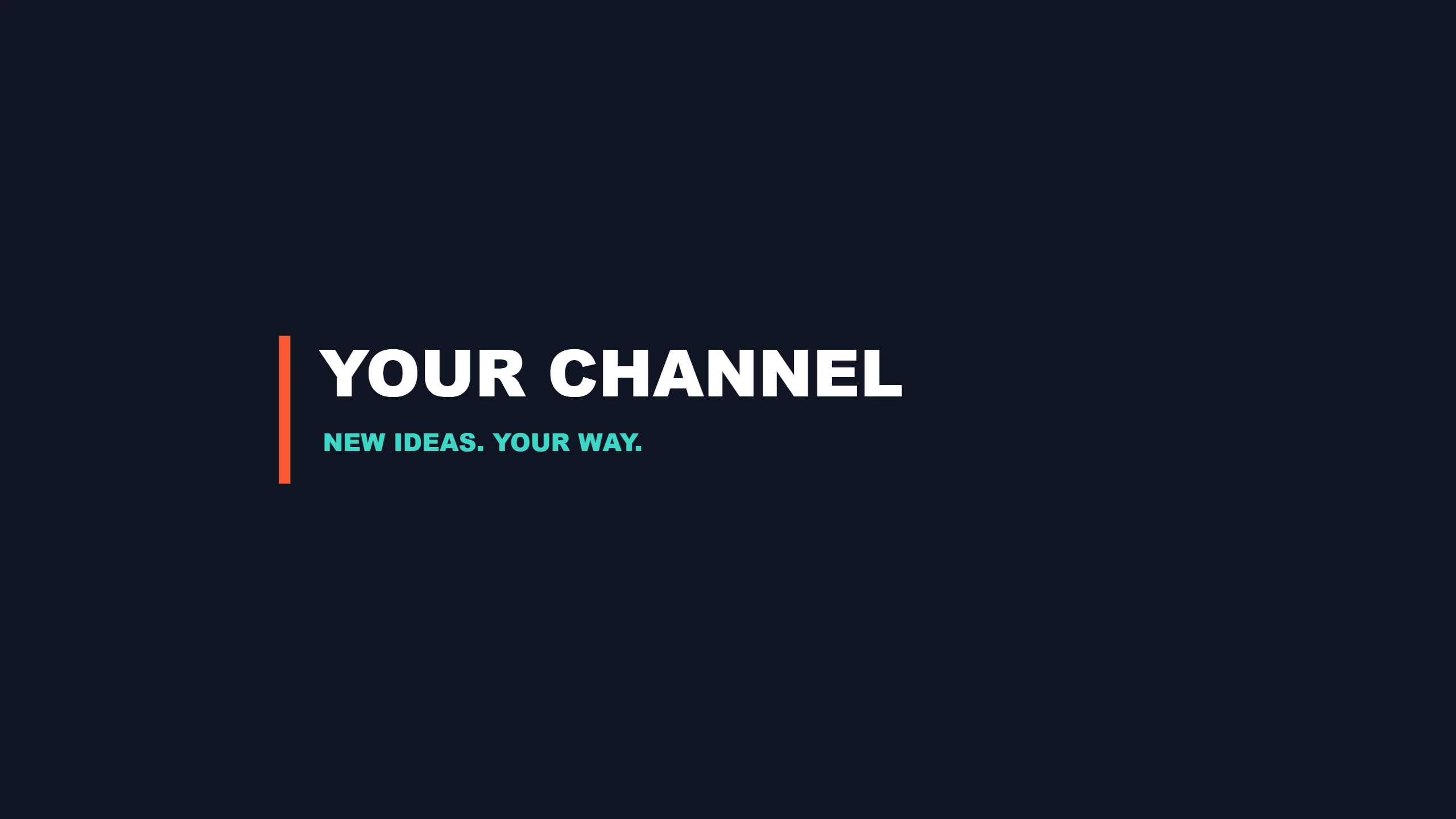
Use the right canvas before you start
Open the banner example above. The Thumbnail Maker selects its Banner format at 2560 × 1440 pixels, matching YouTube's recommended banner dimensions. The project includes a dark background, an orange accent and two editable text layers. You do not need to resize a thumbnail into a banner.
The large canvas gives televisions room to show the full design. Phones show a much narrower central portion. A banner can therefore have the correct file dimensions and still lose its channel name on a phone. Keep your main message in the central safe area from the beginning.
Replace the channel name and tagline
Select YOUR CHANNEL on the canvas or select its text layer in Layers. Replace it with your channel name in the text field. Short names fit most easily. If yours is longer, reduce the font size and check both sides of the safe area rather than stretching the text beyond it.
Replace the smaller tagline with one short description of what you make. You can also delete that layer if the channel name communicates enough by itself. Choose colors that match your logo and give the text enough contrast against the background.
Check what survives the mobile crop
Enable Safe zone guide. The overlay marks the desktop, tablet and central mobile-safe regions. Keep your channel name, logo and any essential text inside the central mobile-safe region. Background colors and decorative shapes can extend into the outer canvas.
At 2560 × 1440, the editor marks a central area of approximately 1546 × 423 pixels. YouTube's official guidance expresses the safe area as 1235 × 338 pixels at its minimum 2048 × 1152 upload size. These describe the same central proportions at different resolutions. The guide is not included in your export.
Add your logo without losing the layout
If you have a transparent PNG logo, add it from Upload and drag it into the central safe area. Resize it using a corner handle. Leave enough space between the logo and the channel name so they are still distinct on a phone.
Zoom out to check the overall balance and turn the guide off briefly to inspect the clean result. Then turn it back on for a final crop check. A detailed background is optional; clear channel identification is the main job of the banner.
Save, export and check the YouTube preview
Use Save to download the editable .fck project before exporting. That project keeps your separate text, shape and image layers. Choose Export and select PNG or JPG for the finished banner. The Banner format exports at 2560 × 1440 pixels. Check that the exported file is 6 MB or smaller, YouTube's current banner limit.
In YouTube Studio, open channel customization and choose your banner image. Inspect the phone, desktop and television previews before publishing. If important text is clipped, return to your saved project, move it farther inside the central guide and export again. You do not need to start the design over.
Ready to try it?
Edit the free banner example