
Make a YouTube Channel Logo for Free
Published
Make an editable initials logo in your browser, check the circular crop and export a transparent PNG. No account or watermark.
Start with a logo you can actually edit
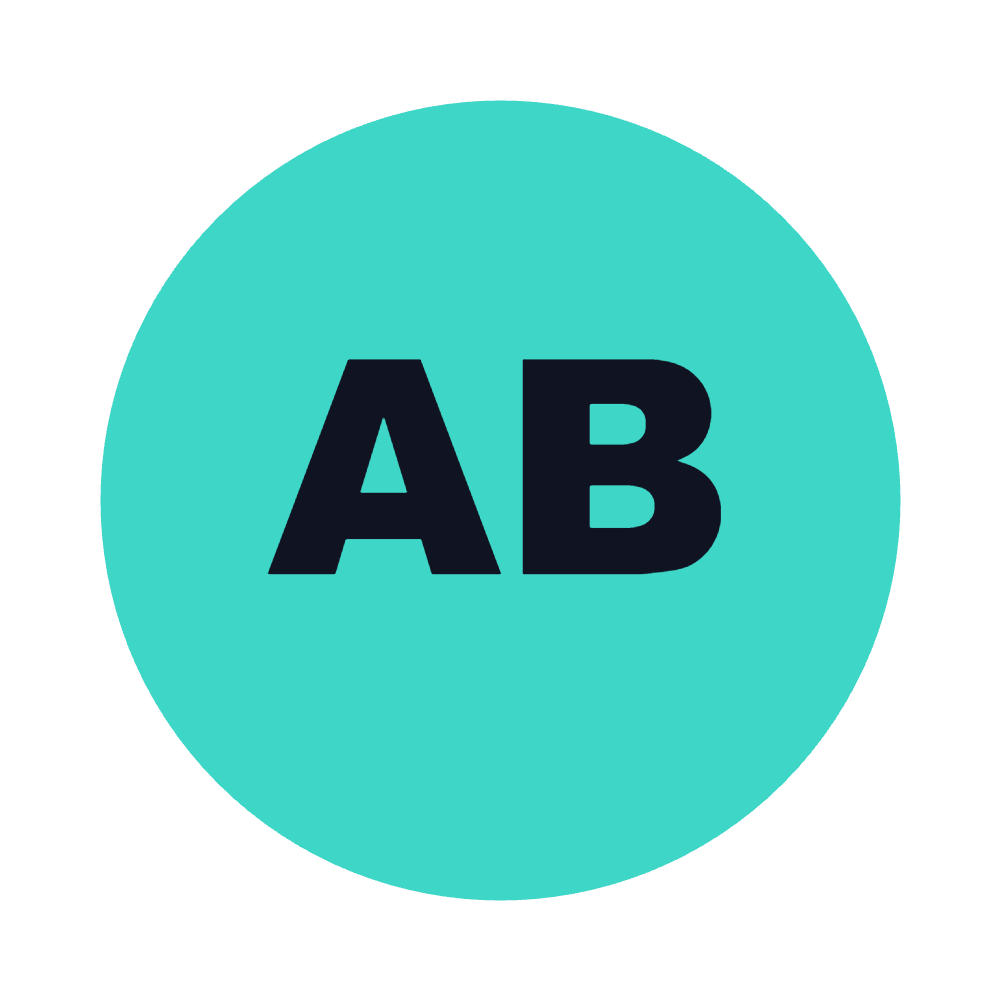
Open the logo example using the button above. The Thumbnail Maker switches to the 1000 × 1000 Logo canvas and loads two separate layers: a turquoise circle and the initials AB. These are editable objects, rather than one flattened image. You can change the letters and colors without having to recreate the design.
The example is a starting point for your own channel identity. Keep a short name or one or two initials that will remain recognizable when the logo is small. YouTube shows profile pictures at small sizes, so fine details and a full sentence are difficult to read.
Replace the initials and choose your colors
Select the text layer in Layers, or select the letters on the canvas. Replace AB in the text field with your own initials. Adjust the font size if your letters are wider, then move the text back toward the center. Keep some space between the letters and the edge of the circle.
Select the circle to change its fill color. Choose a contrasting text color so the initials stay clear. Try a dark letter on a light shape, or a light letter on a dark shape. Check the combination at a small size before adding decorative effects. Use Undo if a change makes the logo harder to recognize.
Check the circular crop and transparency
Turn on Safe zone guide to see the circular crop. Keep the important parts of your logo inside that circle. The guide is an editing aid and is not added to the exported image.
The example starts with Transparent background enabled. The checkerboard around the circle shows the transparent area. Leave that option on if you want to reuse the same logo over a banner or thumbnail. Use PNG when you need transparency; JPG fills the transparent area.
Save the editable project and export your PNG
Give the project a recognizable name, then choose Save to download the editable .fck project. Keep this file: it contains the layers you need to change your initials or colors later. To continue another day, open the editor and choose Open to load that project.
Choose Export, select PNG and download the image. The Logo canvas exports at 1000 × 1000 pixels. Upload that PNG as your profile picture through YouTube Studio's channel customization controls, inspect the crop and publish when it looks right. YouTube currently accepts profile pictures up to 15 MB; the official guidance below has the current requirements.
Use the same identity across your channel
Reuse your exported logo and the same colors in your channel banner and future thumbnails. Upload the PNG through the editor's Upload panel when you need it in another design. The editable .fck file and the exported PNG serve different purposes: keep both.
The example artwork is supplied for you to customize. If you add a photo, font or third-party logo, make sure you have the rights needed for your intended use. Editing and exporting happen on your device; there is no account or cloud project library.
Ready to try it?
Edit the free logo example